Attachments & Annotations
Review files in place — draw and comment directly on an image, and keep the discussion attached to the file.
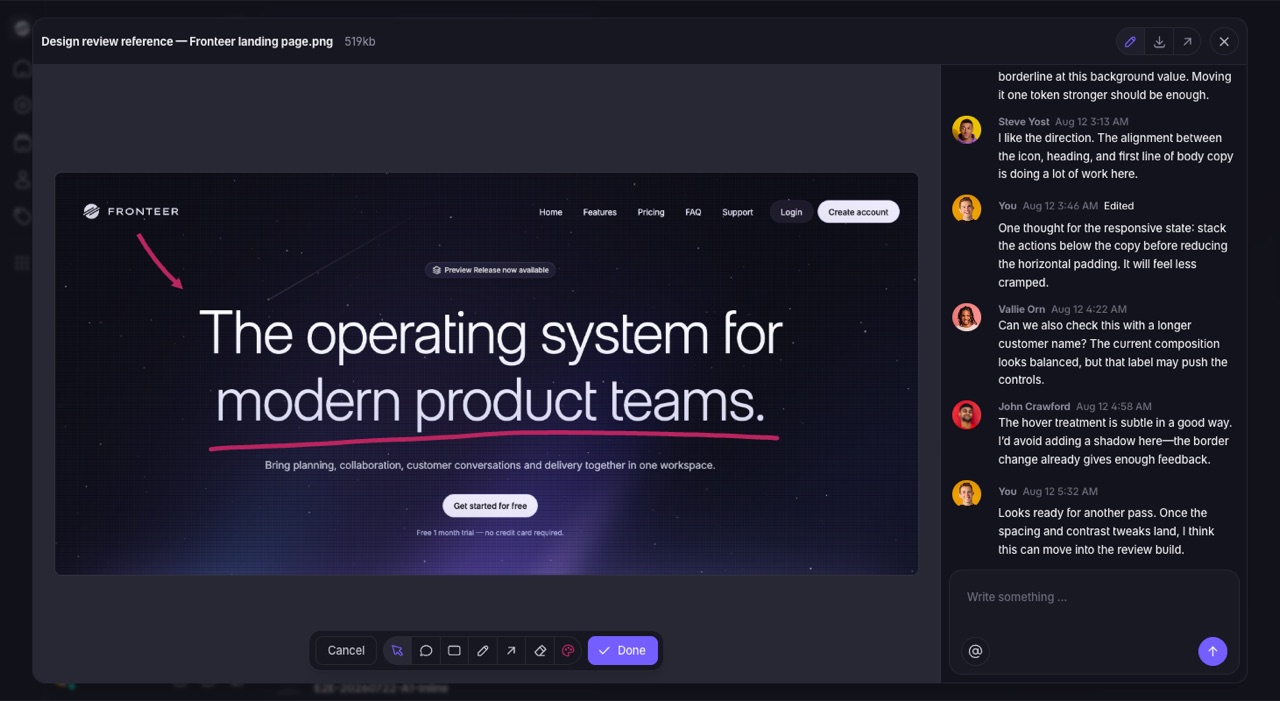
Every file uploaded to Lane opens in a viewer with a discussion panel beside it, and images can be marked up directly — arrows, highlights, freehand drawing, and pinned comments placed on the image itself. Design feedback, bug reports, and document review stay attached to the file instead of scattering across a channel.
Open a file in the viewer
Click any attachment to open the viewer. It works wherever files live in Lane:
- Attachments on a task, and on individual task comments
- Files shared in a project channel message
- Files in a project's Files panel
- Screenshots submitted through the feedback widget
Images, video, audio, and PDFs preview inline. Other file types show a download prompt instead — use Download to save the file, or the open-in-new-tab button to view it outside Lane.
Links pasted into a message open a simple preview without a discussion panel, since there is no file stored in Lane to attach comments to.
Comment on a file
The panel on the right of the viewer is a conversation about that specific file.
Comments support rich text and @ mentions, and a mention notifies that person in
their Inbox with a link straight back to the file.
Comments appear for everyone with the file open after they have been saved. You can edit or delete your own comments — an edited comment is labelled so the history stays honest. Individual comments are limited to 2,000 characters.
Annotate an image
With an image open, use the pencil button in the viewer header to enter annotation mode. A toolbar appears under the image with the drawing tools, and Done saves your work while Cancel discards it.
| Tool | What it does |
|---|---|
| Select and move | Drag an annotation to reposition it. Highlights get corner handles for resizing. |
| Comment | Drop a numbered pin on the image and type a message against it. |
| Highlight | Draw a box that dims everything outside it, to focus attention on one region. |
| Draw | Freehand strokes for circling and underlining. |
| Arrow | Point at the exact thing you are talking about. |
| Erase | Click an annotation to remove it. |
The palette button sets the colour used by the drawing tools. Pick a colour before drawing — it applies to new annotations rather than to the current selection.
Annotations are saved onto the file itself, so anyone who opens it afterwards sees the same markup. Outside annotation mode, comment pins are read-only: click one to read its message.
Only one person can annotate an image at a time. While someone is editing, the pencil button shows a lock for everyone else and becomes available again when they finish. Annotation mode also closes if the live connection is lost, so an offline edit cannot overwrite newer markup.
Widget screenshots retain their original capture and annotations. You can edit their markup in the same viewer; subsequent saves are stored with the attachment. Download saves the original file, not a flattened image of the current markup.
Pinned comments or panel comments?
Both are useful, and they answer different questions:
- Pinned comments answer where — "this padding", "this label". They only exist on images, and they live on the image for everyone who opens it later.
- Panel comments answer what next — the back-and-forth, decisions, and sign-off. They work on every file type, support mentions and notifications, and read as a conversation in order.
A common pattern for design review is to pin the specific problems on the image, then use the panel to agree on what changes and who does it.