Documents
Write together in a project document, comment on the text itself, and turn the finished draft into a task.
Documents give a project a shared writing space for the things that do not fit in a task description — a brief, a plan, a decision log, a draft announcement. Everyone in the project edits the same document at the same time, comments attach to specific passages rather than to the document as a whole, and a finished draft can be converted into a task in one step.
Create and open a document
Open a project and choose Documents in the right-hand sidebar. The panel lists every document in the project, along with how many open comments each one has, so you can see at a glance which drafts still need attention.
Use + to create a document. It starts as Untitled document and opens immediately. Edit the title in the header — it saves when you click away, and an empty title falls back to Untitled document.
Documents belong to their project and follow the project's membership and privacy rules. Anyone who can open the project, including guest collaborators, can read and edit its documents.
Write together
The document body uses the same rich text editor as tasks and messages, so headings,
lists, formatting, and @ mentions all work the way you expect.
Editing is collaborative in real time. When two people have the same document open, their changes merge as they type — there is no save button, no lock, and no "someone else is editing this" warning to work around.
Comment on the text
Select a passage and add a comment. The selection is highlighted in the document and the comment opens as a thread in the panel on the right. Threads and highlights stay linked: click a thread to highlight its passage, or click a highlight to bring its thread into focus.
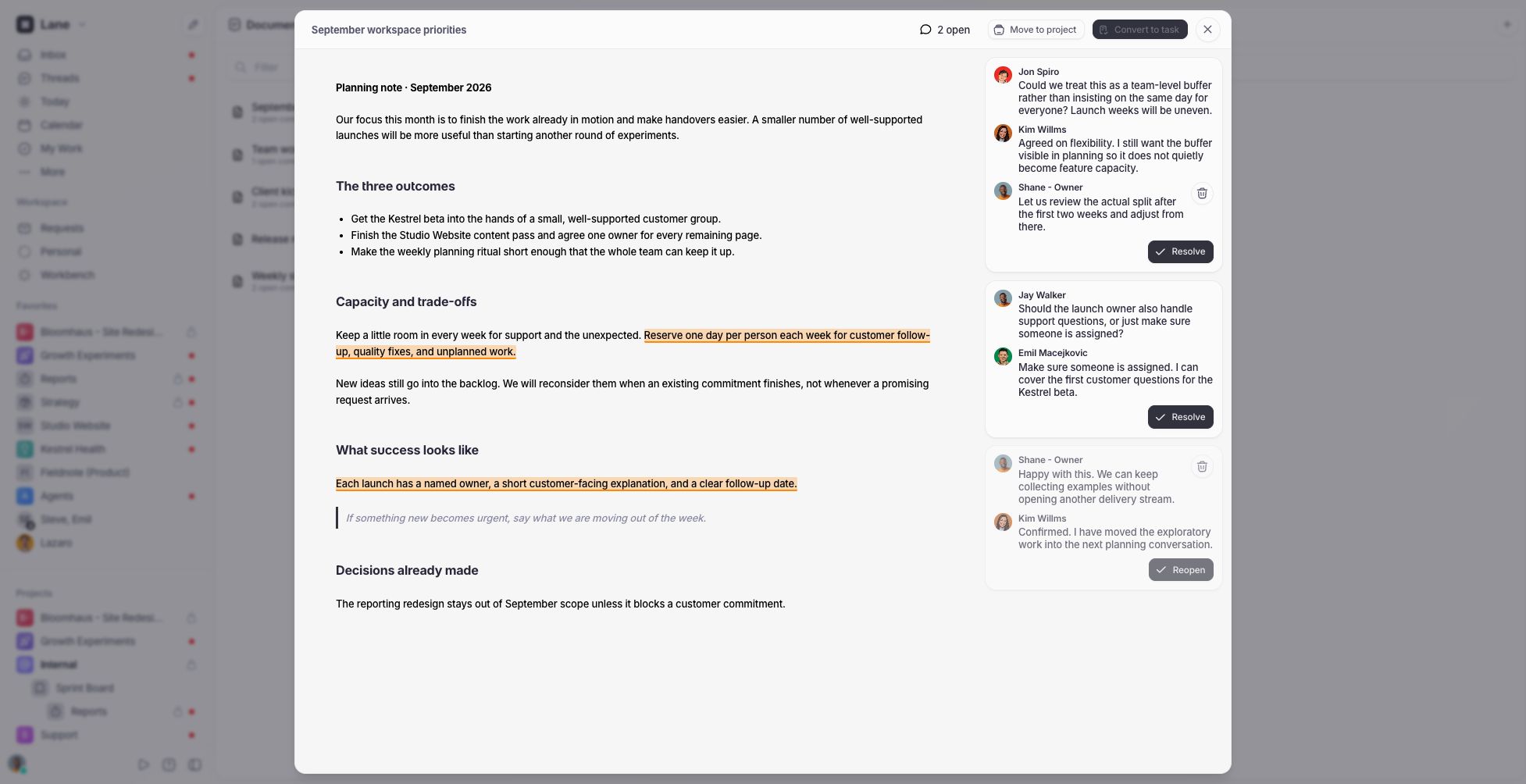
Replies go in the same thread, so a discussion about one paragraph stays in one place. Mentioning a teammate in a comment sends them a notification in their Inbox.
The header shows a running count of open threads. Resolve closes a thread once it has been dealt with; Reopen brings it back if the conversation is not actually finished. Resolved threads remain readable in the panel rather than disappearing.
You can delete your own comments. Deleting the last comment in a thread removes the thread and its highlight from the document.
Threads whose text was removed
If someone edits away the passage a thread was anchored to, the thread is not lost. It stays in the panel and is marked Referenced text was deleted, so the discussion survives the edit and can still be replied to or resolved.
Convert a document to a task
When a draft is ready to become work, use Convert to task. Lane creates a task in the same project using the document's title and body, notifies anyone mentioned in the content, and opens the new task. The comment highlights are stripped from the task description — they belonged to the drafting stage, not to the work itself.
Every thread must be resolved before a document can be converted; the button stays disabled while any comment is still open. This is deliberate: converting is a one-way step, and the document is deleted once the task exists.
Delete a document
Delete a document from the Documents panel using the bin icon on its row. Lane asks for confirmation first, because the document, its comment threads, and its history are removed permanently.