Roadmap
Publish selected project tasks as a clear, shareable view of what is planned, in progress, and complete.
The roadmap turns selected project tasks into a public view of what your team is planning and delivering. It stays connected to the underlying work: there is no second roadmap record to update, and changes to a task remain the source of truth.
Roadmap visibility is deliberate. A task appears only after you mark it for the roadmap, and the project’s Roadmap page must be enabled before anyone outside the project can see it.
Set up the roadmap page
Open the project’s Settings, choose Roadmap, and enable public sharing. You
can add a background image and description, then copy the generated /roadmap/… URL.
The description is a useful place to explain the project’s purpose, the time horizon of
the roadmap, or how visitors should interpret it.
The Roadmap page communicates what is planned or underway. The separate Changelog page explains what shipped and has its own settings and URL.
Review Public Sharing before distributing the link. Regenerating the roadmap URL invalidates the previous link, while disabling the roadmap page removes public access without clearing the tasks you selected for the roadmap.
Add a task to the roadmap
Roadmap items are regular top-level project tasks. To add one:
- Enable the project’s Roadmap page if it is not already enabled.
- Open the task you want to publish.
- Select Show on roadmap from the task toolbar.
The roadmap button becomes accented while the task is selected. Select it again to remove the task from the roadmap. Subtasks are not published as separate roadmap cards; promote work to a top-level task when it needs its own public roadmap entry.
Adding a task to the roadmap does not change its dates, section, completion state, or normal project workflow. Completing a roadmap task keeps it on the roadmap so the public view can show progress rather than quietly removing shipped work.
Review the project roadmap
Open Roadmap from the project tools on the right to see every selected task and its current roadmap signal. The panel shows the task title, dates, type or priority marker, completion state, and public like count. Select a card to open the normal task detail and make changes at the source.
The Roadmap panel appears only once the project’s Roadmap page is enabled — the same condition that reveals Show on roadmap on a task. Disabling the roadmap page hides both, but keeps the tasks you already selected for the roadmap.
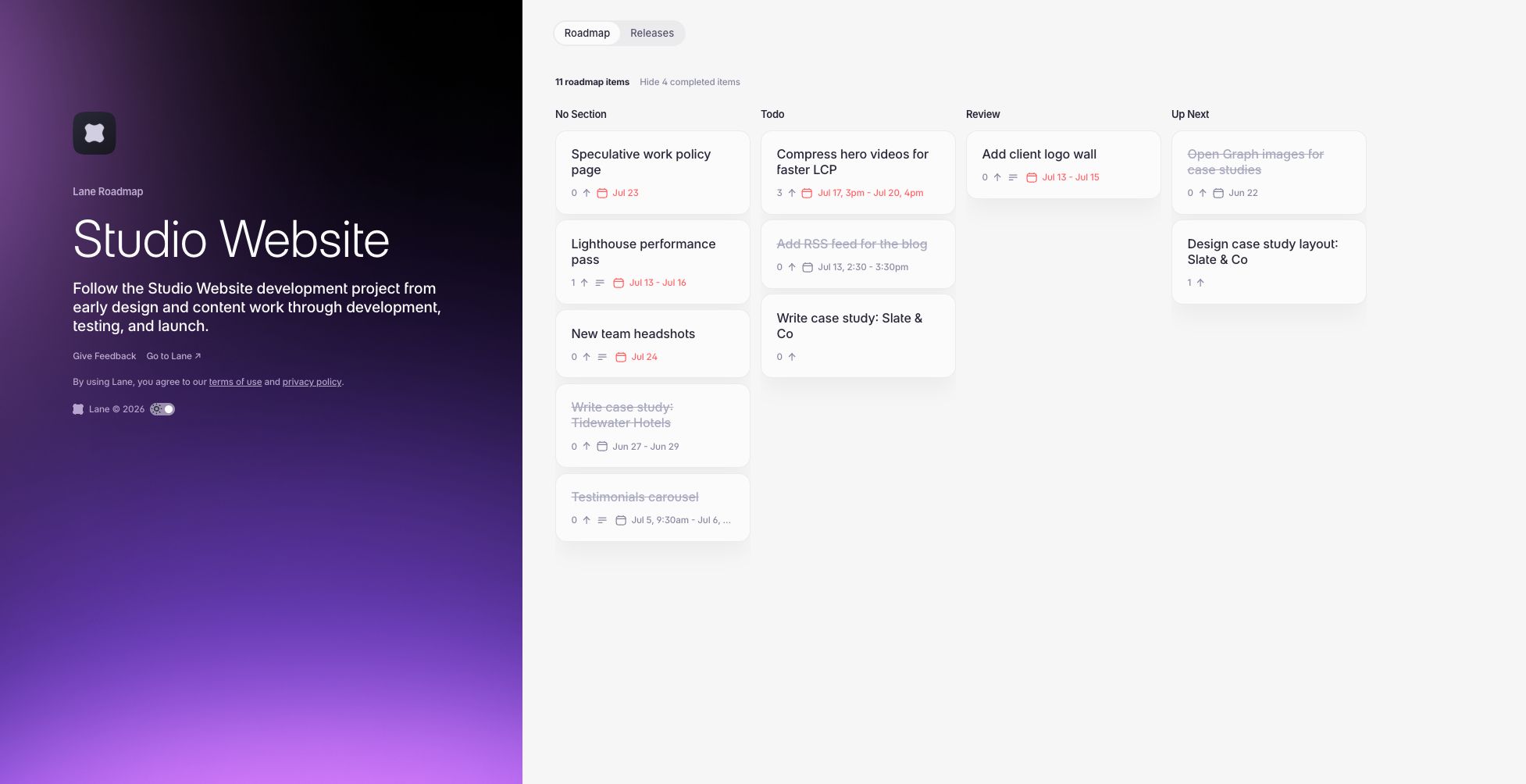
Use sections and task ordering to shape the public story. A section can represent a stage such as Todo, Review, or Up Next, while tasks without a section appear under No Section. Changing the section or order in the project changes where the task appears on the public roadmap after the page is refreshed.
What the public roadmap shows
Visitors can open the roadmap page without a Lane account. Roadmap cards are grouped by project section and can show:
- The task title and completion state
- Start and end dates
- Whether a description is available
- The number of public likes
Completed tasks remain visible with completed styling, and visitors can hide or show them. The public board scrolls horizontally when the roadmap has more sections than fit on screen.
Selecting a card opens its public detail. This view can include the task description, dates, task type, likes, and comments made from the roadmap.
Likes and roadmap comments
Any visitor can like a roadmap task. Likes provide a lightweight signal around public interest; they do not change task priority, dates, or ordering automatically.
Roadmap comments are visible publicly. A visitor must sign in to a Lane account to add one, but they do not need to join the project. Comments submitted from the roadmap page are attached to the task and marked as Roadmap comments for the project team.
Roadmap comments currently cannot be edited or deleted from the public page, so visitors should treat them as part of the published conversation.
Understand the privacy boundary
Marking a task for the roadmap publishes its existing title and description. Review both before sharing; unlike a release item, the roadmap does not provide separate public wording.
The public roadmap does not expose task assignees, labels, custom fields, the task attachment list, subtasks, or internal task comments. It shows only the selected top-level task’s roadmap fields and comments explicitly submitted through the roadmap.
To remove public access to a task, turn off Show on roadmap or archive the task. To take the entire roadmap offline, disable the project’s Roadmap page. Changes are not pushed to already-open public pages in real time, so refresh the page when verifying an update.
Keep the roadmap credible
A useful roadmap communicates direction without turning every date into a promise:
- Publish work that is meaningful to customers or stakeholders.
- Give each task a clear title and enough description to explain the outcome.
- Use sections to communicate stage rather than inventing a parallel status system.
- Add dates only when they help readers understand timing.
- Keep completed tasks visible long enough to show progress, then use Releases for the durable account of what shipped.
Because roadmap cards remain normal tasks, the public plan stays close to delivery and the team avoids maintaining the same work in two places.