Forms
Collect structured requests and feedback through a public form, then review and reply to each submission as a task.
Forms collect requests and feedback directly into a project. Share a public link, ask the questions your team needs answered, and each submission becomes an unread task ready for triage. The person submitting the form does not need a Lane account.
Create a form
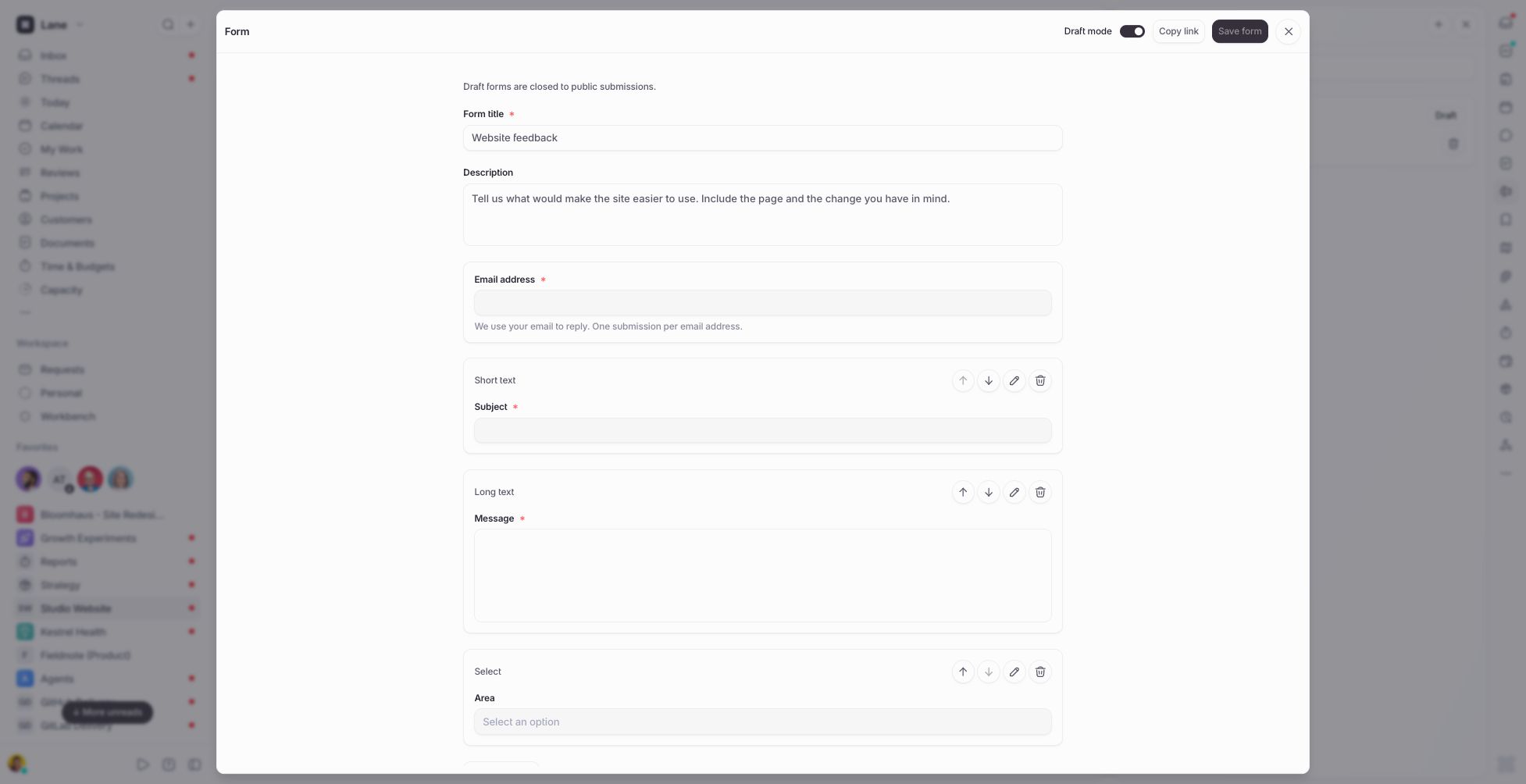
Open a project and choose Forms in the right-hand sidebar. Use + or Create form to create one. It starts as Untitled form in draft mode, with required Subject and Message fields.
Give the form a title and an optional description explaining what you want to collect. The Forms panel lists the project's forms, their Draft or Live status, and the number of submissions each has received. Use the filter to find a form by title.
Managing forms requires an Admin or Member role in the project and an Owner, Admin, or Member role in the workspace. See Members & Roles for the wider membership model.
Choose and arrange fields
Every form includes a required email address. You can add up to 30 other fields and choose from these types:
| Field type | Use it for |
|---|---|
| Short text | A subject, name, or brief answer. |
| Long text | A detailed request or explanation. |
| Select | One answer from a list of choices. |
| Checkbox | A yes-or-no answer or an acknowledgement. |
| Number | A numeric answer, including decimals. |
| Date | A calendar date. |
Use a field's pencil icon to change its label, type, or Required setting. For a Select field, enter one choice per line; each field supports up to 50 distinct choices. Save field applies the edit to the form you are working on. Use the up and down arrows to reorder fields, or the bin icon to remove one.
A required Checkbox must be checked before a submission can be accepted. An optional Checkbox records Yes or No.
Click Save form to save the title, description, fields, and draft setting. Edits take effect on the public form only after this save.
Publish and share
Turn Draft mode off and click Save form to start accepting submissions.
Then use Copy link to share the form's /form/… address.
Anyone with the link can open a live form and submit it. The link gives them the form and its questions without granting access to the project, its tasks, or other people's submissions. See Public Sharing for the other kinds of links available in Lane.
To pause submissions, turn Draft mode back on and save. Draft forms are unavailable through the public link. Archiving the project also makes its forms unavailable; restoring the project makes its live forms available again.
Submit a response
The visitor enters an email address, fills in the form, and clicks Submit. Lane checks required answers, Select choices, numbers, and dates before accepting the response, then displays a confirmation.
Each email address can submit a particular form once. Capitalisation and spaces around the address do not allow another submission. The same address can still submit other forms.
Review submissions and reply
Each accepted submission creates an unread task in the form's project. The first non-empty Short text answer becomes the task title; if there is no such answer, Lane uses the form title.
Open the task to see a submission card containing the form title, sender's email, and every question and answer. The card preserves the form as it was submitted, so later changes to field labels, order, or choices do not rewrite earlier responses. Assign the task, add labels, and plan it using the normal task workflow. Form questions are configured separately from task custom fields.
In the task's comments, choose Reply to email the person who submitted the form, or Note to keep the comment internal to the team. If the project has email intake configured, replies to those emails return to the task conversation.
The Forms panel's submission count updates as new responses arrive.
Delete a form
Use the bin icon on a form in the Forms panel and confirm Delete. Its public link stops working. Existing tasks and their submission cards are kept, so the team can continue working on requests that have already arrived.