Threads
Keep replies attached to a message and find every thread you are part of in one place.
Threads keep a focused conversation attached to a message without filling the main channel with every reply. The original message stays at the top of the conversation and the thread opens in a sidebar alongside the channel.
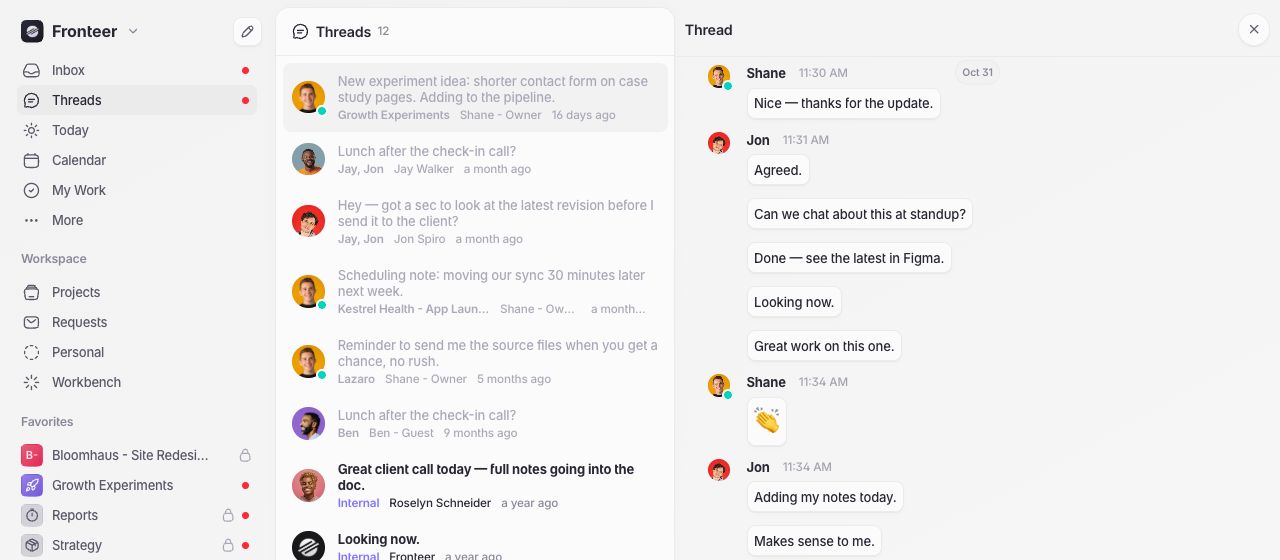
Every thread you are part of also appears under Threads in the primary navigation, giving you one place to follow conversations across the workspace.
Starting a thread
In a project channel or chat view, hover over the message you want to discuss and select Thread. Lane opens the thread in the sidebar with the original message included for context. Write the first reply to start the conversation.
You can mention teammates, attach files, react, or add further replies without leaving the channel you were viewing.
Following your threads
Select Threads in the left navigation to see all the threads you are part of, regardless of which project they came from. Each entry shows the original message, its project or conversation, its author, and its latest activity.
Open an entry to continue the conversation in the sidebar. New activity is marked unread, and opening the thread marks it as read. If you no longer want a thread in your list, hover over it and unsubscribe.
Connecting a thread to work
Use the task button in the reply composer to attach an existing project task or create a new one. The task is included with the reply, so anyone following the thread can open the work without losing the surrounding conversation.